Explore Common Issues by Category
 Common Robot Issues
  Power Issues
  Connectivity
  Setup and Reset
  Charging
  Hardware
  Firmware and Updates
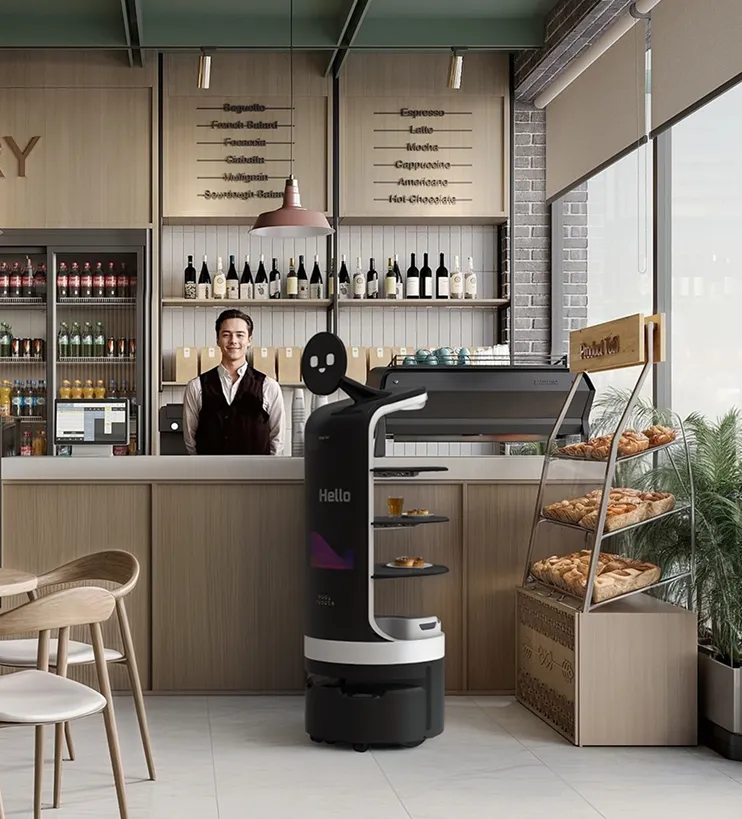
Dasher is used to deliver food, trays, and items between service points in restaurants, hotels, and similar indoor environments. It reduces manual trips for staff and keeps service movement consistent during peak hours.
Dasher works best in indoor spaces with defined pathways such as restaurants, cafes, hotels, and hospital corridors. Clean flooring, stable layouts, and minimal obstructions help maintain smooth navigation.
Basic training is recommended. Staff should know how to assign tables or destinations, manage trays, and respond to alerts on the screen to ensure uninterrupted service.
Check whether the Dasher has enough battery or is properly connected to the charging dock. If the battery is fully drained, allow it to charge for several minutes before attempting to power it on again.
Dasher may stop due to low battery, obstacle detection, or a system alert. Check the screen for messages, clear any blockage in its path, and ensure the battery level is sufficient before resuming.
Ensure the Dasher is properly aligned with the charging dock and check the display for charging status. The battery percentage should increase steadily during charging.
No. Battery replacement should only be handled by Kody Robots support or authorized technicians to ensure safety and proper system functioning.
Frequent trips, continuous usage during peak hours, or resistance in wheels can increase battery consumption. Check wheel condition and usage pattern, and request support if the issue continues.
Open network settings from the touchscreen, select the required Wi-Fi network, enter the password, and confirm. The connection status will appear on the screen once completed.
Dasher can perform basic delivery tasks using its internal system. Internet is required for updates, remote support, and certain advanced features.
Check signal strength in the service area, avoid placing routers behind walls or kitchen equipment, and ensure stable coverage across all routes.
Yes, but unstable connectivity may affect monitoring and updates. Core movement will continue, but performance is better with a stable network.
Yes, but network settings may require configuration. Coordinate with your IT team to allow proper communication.
Power on the Dasher, enter Manager Mode, create a map of the space, assign tables or destinations, and save routes before starting service.
Move the Dasher to a known location and use the relocation option from the system interface to reset its position.
Yes. Routes and destinations can be updated from the map editor and saved for future use.
Use virtual boundaries in the map settings to block access to restricted zones such as kitchens, staff-only areas, or obstacles.
A full reset should be done only with support guidance, as it removes maps and configurations required for operation.
Place the Dasher on the charging dock and ensure proper alignment of contact points. Charging will begin once the connection is stable.
Charging time depends on battery level and usage but typically takes a few hours for a full cycle.
Ensure the docking station is correctly positioned and free from obstacles. Check calibration and maintain a clear path for docking.
Install the dock in a clean, accessible area with enough space for the Dasher to align and dock without obstruction.
Yes, but it is recommended to charge during low-traffic periods to avoid interruptions in service flow.
Dasher uses LiDAR sensors, cameras, and obstacle detection systems to move safely and avoid collisions in indoor environments.
Dasher is designed to carry multiple trays within its defined load capacity. Avoid overloading to maintain balance and smooth movement.
All movement stops immediately. Release the button and restart the task from the interface to resume operation.
Clean trays and outer surfaces with a soft cloth and mild cleaning solution. Avoid water entering electronic components.
Dasher can navigate around people, but heavy crowding may slow movement. Maintaining clear pathways improves performance.
Access System Settings from the Dasher screen and open the Software Update section. When connected to Wi-Fi, Dasher checks for updates related to navigation, route management, and delivery control systems.
Updates apply to Dasher’s navigation system, tray handling logic, obstacle detection sensors, and user interface. These improvements help maintain smooth delivery routes and stable performance in service environments.
Place Dasher on the charging dock or ensure sufficient battery level. Confirm stable internet connection and ensure no delivery tasks are active before starting the update process.
The system may not function correctly until the update is completed. Restart the Dasher and retry the update. If the issue continues, contact support for proper recovery.
No. Dasher pauses all delivery operations during updates. Schedule updates during non-service hours to avoid interruptions in operations.
Access Robot User Manuals and
Support & Maintenance Guides
Find detailed user manuals, setup instructions, and operating guides for each robot model to support daily usage and troubleshooting.




Robot Warranty Coverage and Claim Process
Covered Under Warranty
-
Mechanical components such as motors, gears, and wheels
-
Electronics including PCB, CPU, and internal sensors
-
Display system and touch interface
-
Battery coverage for the first 6 months
-
Software updates and technical support
Not Covered / Warranty Exclusions
-
Accidental damage, drops, or improper usage
-
Exposure to water, fire, or extreme conditions
-
Unauthorized repairs, tampering, or modifications
-
Use of unapproved accessories or modifications
-
Battery performance after 6 months
-
Cosmetic wear such as scratches, dents, or external damage
-
Consumables such as tires, pads, and bumpers
Warranty Claim Process
- Contact support via Email, Call, or WhatsApp
- Share robot serial number, issue details, and photo or video proof
- Receive a technical response within 48 business hours
- On-site visit or service center support will be arranged
See Autonomous Robots In Action For Your Operations
Share your environment and requirements and we will walk you through how robots fit into your operations.
Brands we worked with